> ## Documentation Index
> Fetch the complete documentation index at: https://litprotocol-vincent.mintlify.site/llms.txt
> Use this file to discover all available pages before exploring further.
# Publishing Abilities
Vincent Abilities need to be published to our database before they can be accessible to application developers.
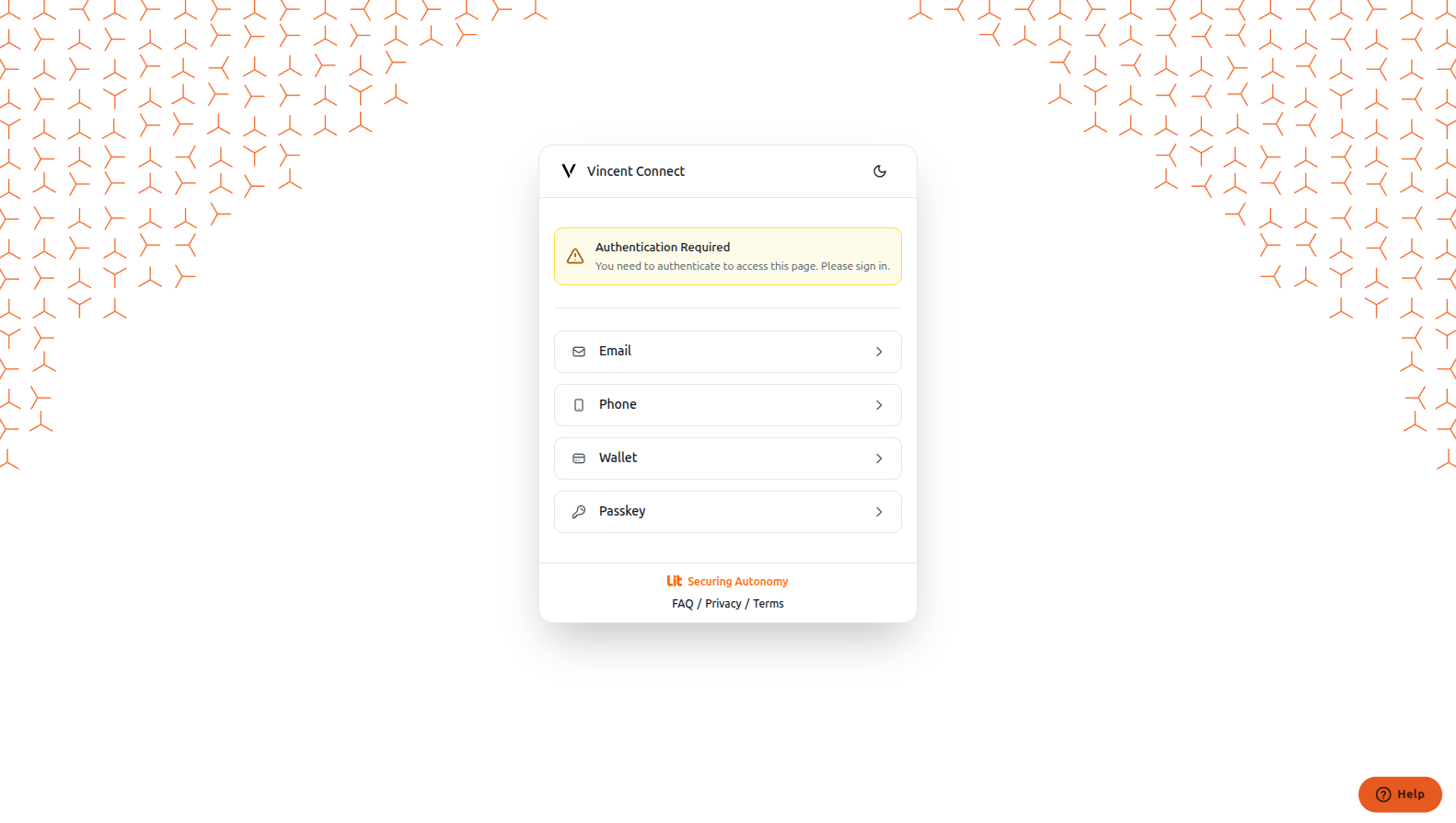
Go to the [Vincent Developer Dashboard](https://dashboard.heyvincent.ai) and log in with your preferred authentication method.
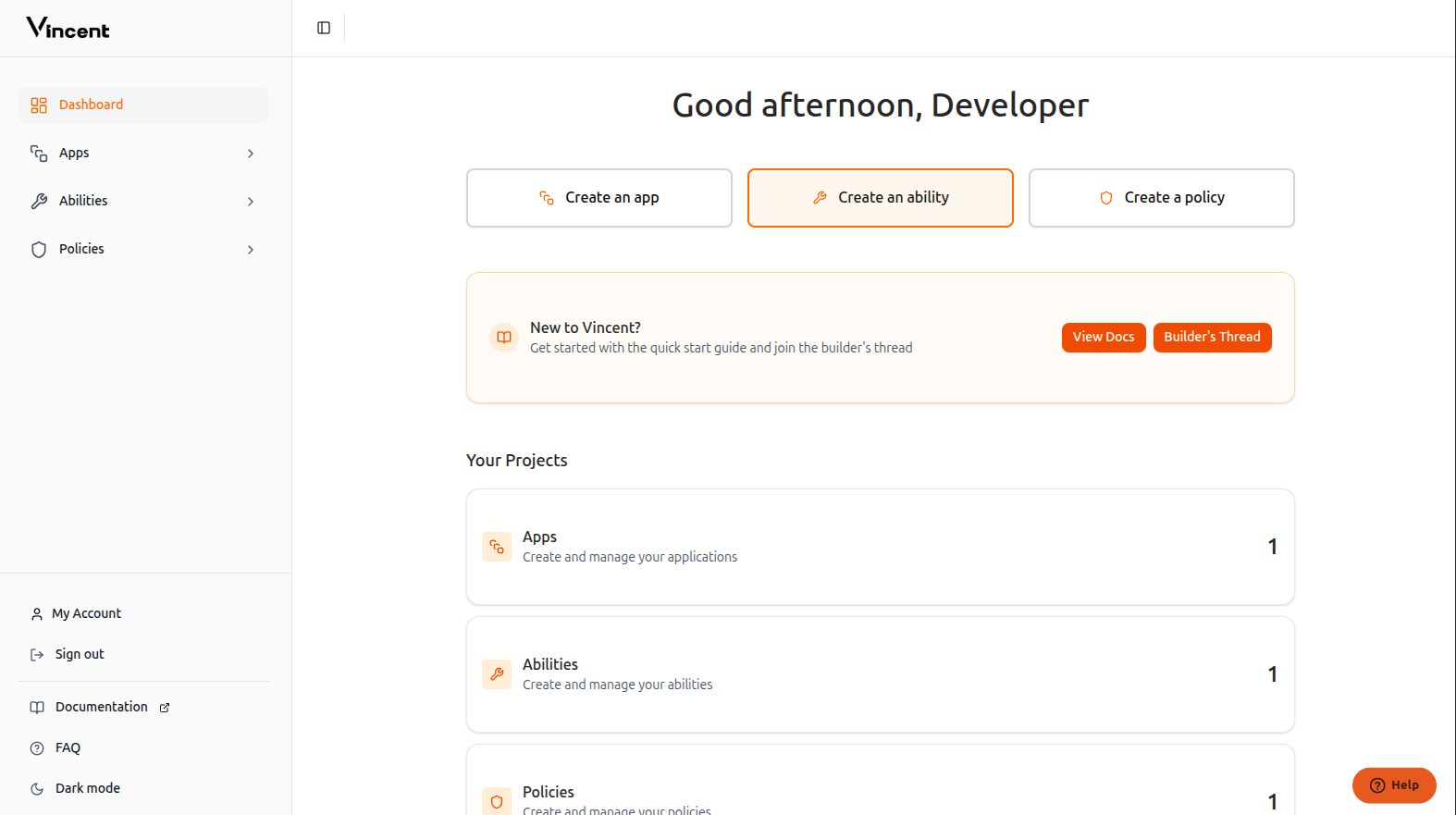
 After logging in, click the **Create an ability** button to access the [Create Ability Page](https://dashboard.heyvincent.ai/developer/create-ability)
 Complete the form with your ability information:
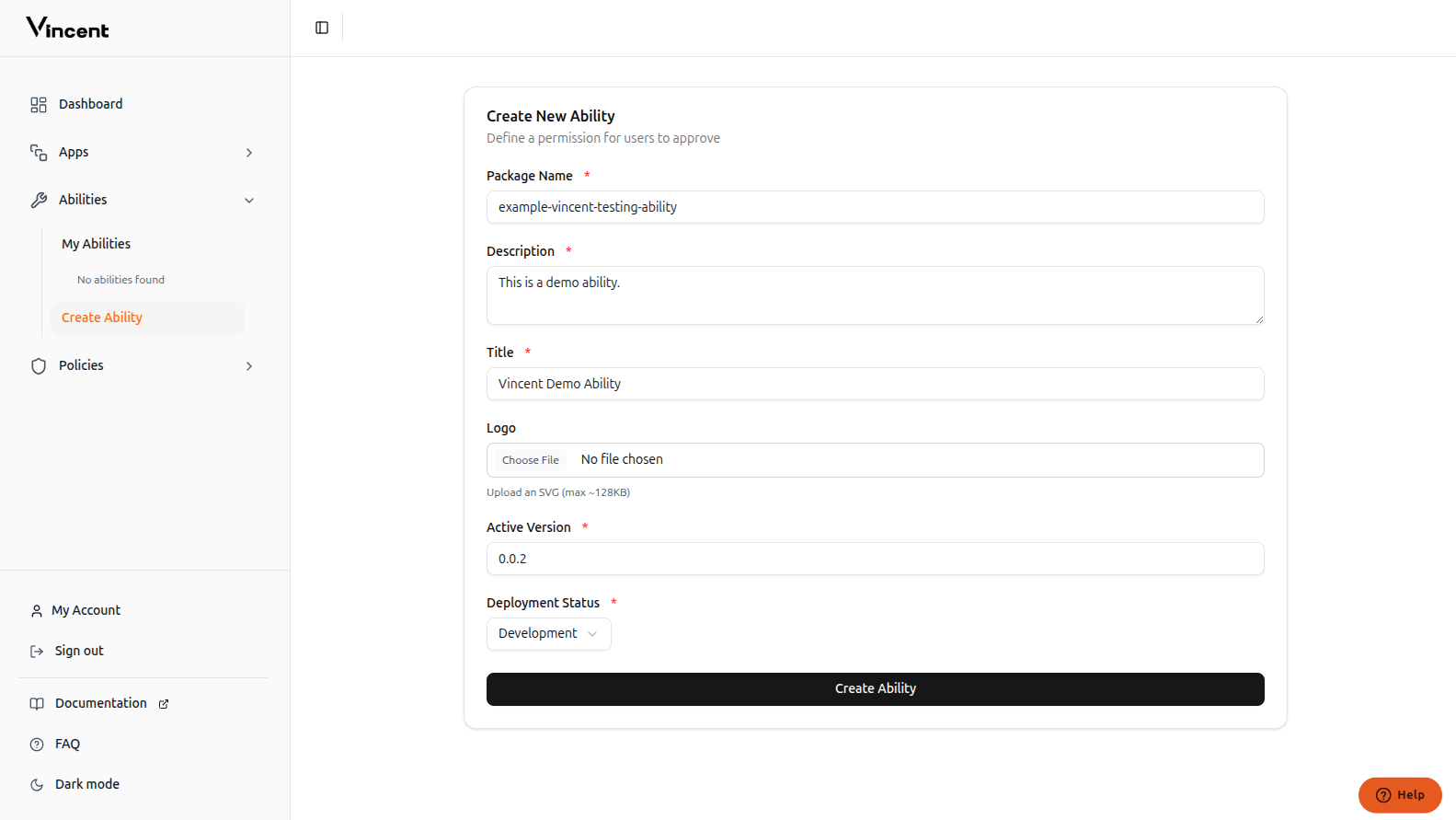 The published `npm` package name
The ability description
The ability title
Image of your ability shown to users while connecting
The ability version which will be used by app creators
The current status of the ability
Your ability has been successfully published to the Vincent database and is now available for app developers to use.
The published `npm` package name
The ability description
The ability title
Image of your ability shown to users while connecting
The ability version which will be used by app creators
The current status of the ability
Your ability has been successfully published to the Vincent database and is now available for app developers to use.
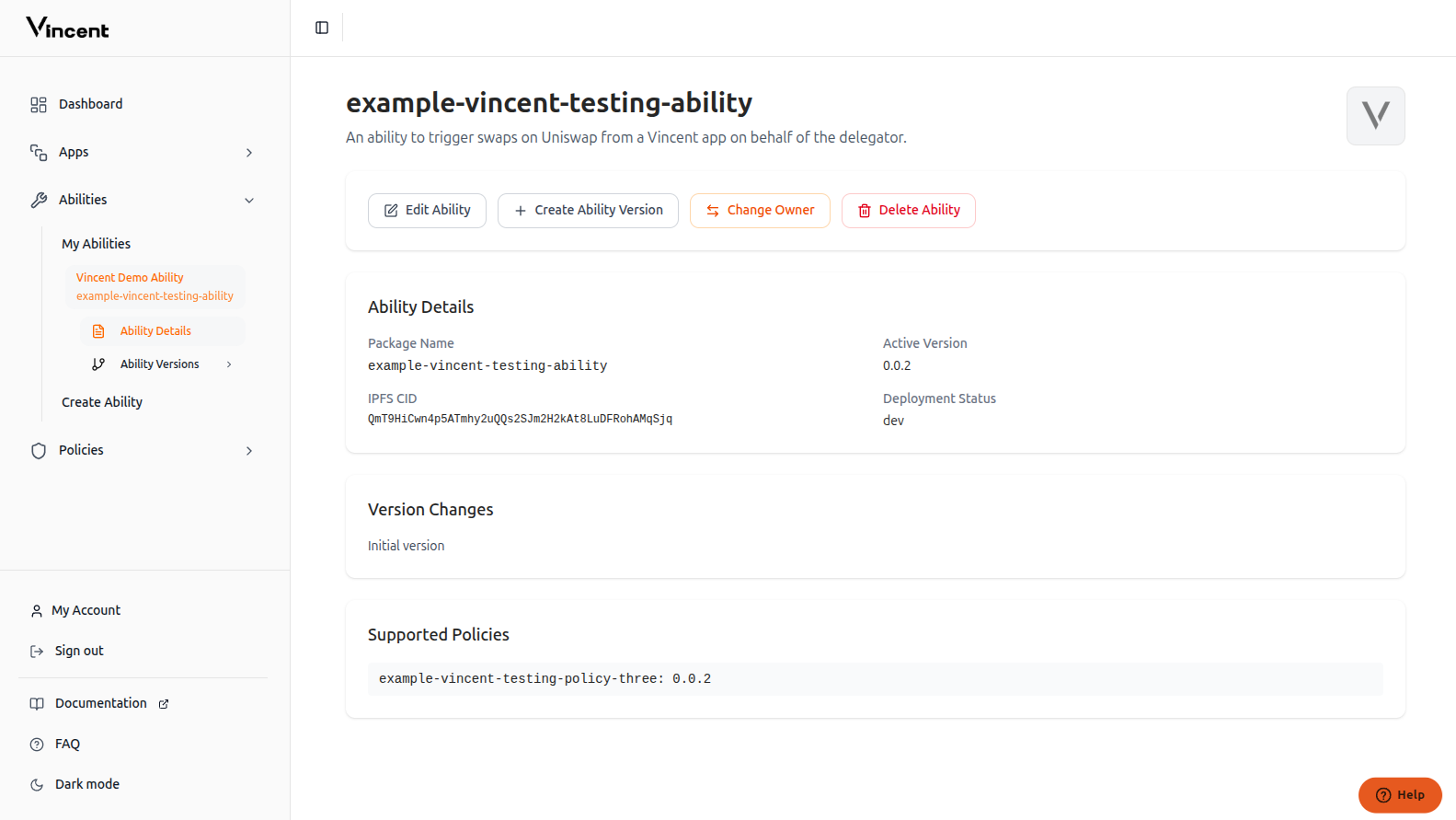 This version must be published to `npm`. Aside from the package name, all other metadata is editable.
Abilities with the 'dev' status won't be visible to app developers. Only abilities with 'active' status can be integrated into Vincent Apps.
## Updating Your Ability
When you want to release a new version of your ability, you'll need to update our database with the new version information. We'll cover the version update process in the next section.
## Next Steps
Build your first Ability with the starter kit
Learn how to integrate Policies with your Abilities
This documentation is built and hosted on [Mintlify](https://mintlify.com), a developer documentation platform.
This version must be published to `npm`. Aside from the package name, all other metadata is editable.
Abilities with the 'dev' status won't be visible to app developers. Only abilities with 'active' status can be integrated into Vincent Apps.
## Updating Your Ability
When you want to release a new version of your ability, you'll need to update our database with the new version information. We'll cover the version update process in the next section.
## Next Steps
Build your first Ability with the starter kit
Learn how to integrate Policies with your Abilities
This documentation is built and hosted on [Mintlify](https://mintlify.com), a developer documentation platform.