> ## Documentation Index
> Fetch the complete documentation index at: https://litprotocol-vincent.mintlify.site/llms.txt
> Use this file to discover all available pages before exploring further.
# Deprecating App Versions
After publishing new App Versions and updating the App's active Version, you may want to disable previous App Versions to encourage your Vincent App Users to upgrade to newer versions.
## Enable/Disable App Versions
Click the version number menu item in the sidebar menu to access the specific App Version's dashboard.
Click the **Disable App Version** button to deactivate the selected version.
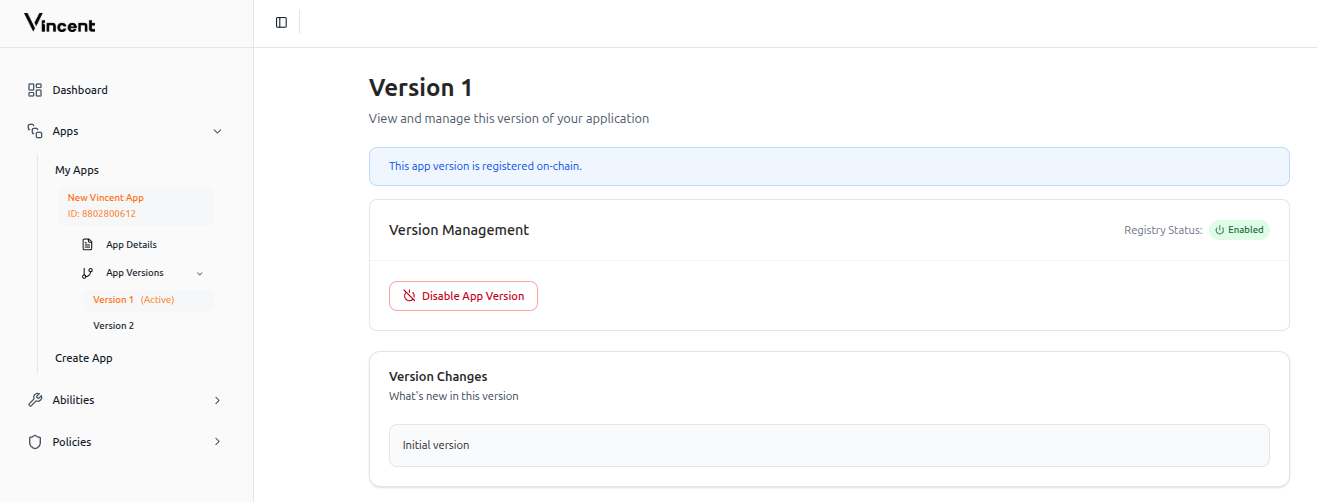 The **Disable App Version** button can be found on each App Version's dashboard page.
### Effects of Disabling
Clicking this button will:
* Immediately disable the App Version in the Vincent App Registry
* Prevent your Vincent App Delegatees from executing Vincent Abilities for any Users who have authorized only the disabled App Version
* Next time they authenticate to your app, users will be prompted to upgrade to the latest enabled App Version to continue using your App
Once an App Version is disabled, the button will change to **Enable App Version**. Clicking this will re-enable the App Version, allowing your Vincent App Users who are still on that version to use it again, and permitting your Vincent App Delegatees to execute Vincent Abilities for that version.
## What Do Your Vincent App Users See When Changing App Versions?
If you create a new App Version and don't publish it, or create one and publish it, your Vincent App Users will not be notified of the new version.
Users are only notified of new versions when you set the new version as your Vincent App's currently active App Version.
### User Experience with Version Changes
When both the user's current version and the app's active version are enabled:
The **Disable App Version** button can be found on each App Version's dashboard page.
### Effects of Disabling
Clicking this button will:
* Immediately disable the App Version in the Vincent App Registry
* Prevent your Vincent App Delegatees from executing Vincent Abilities for any Users who have authorized only the disabled App Version
* Next time they authenticate to your app, users will be prompted to upgrade to the latest enabled App Version to continue using your App
Once an App Version is disabled, the button will change to **Enable App Version**. Clicking this will re-enable the App Version, allowing your Vincent App Users who are still on that version to use it again, and permitting your Vincent App Delegatees to execute Vincent Abilities for that version.
## What Do Your Vincent App Users See When Changing App Versions?
If you create a new App Version and don't publish it, or create one and publish it, your Vincent App Users will not be notified of the new version.
Users are only notified of new versions when you set the new version as your Vincent App's currently active App Version.
### User Experience with Version Changes
When both the user's current version and the app's active version are enabled:
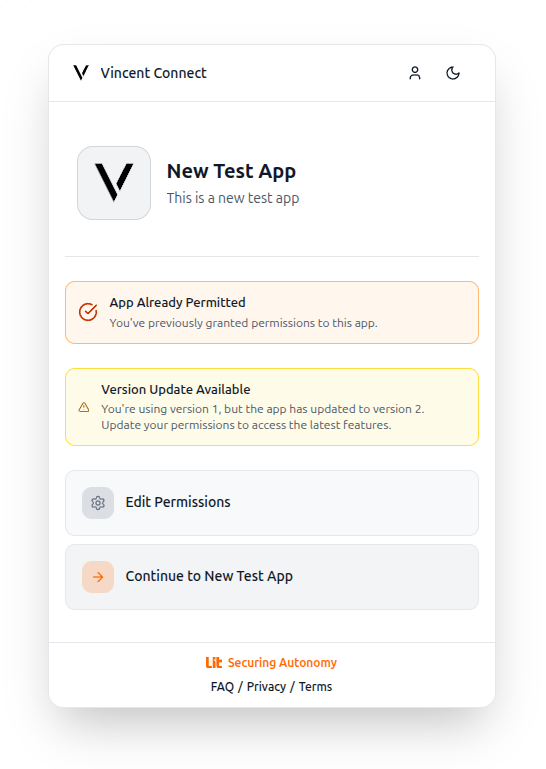 **User experience:**
* They see a notification about the new version available
* They can choose to upgrade or continue using their current version
* No interruption to their workflow
Users with enabled versions are not forced to upgrade and can continue using the version they've already permitted.
When the user's current version is disabled but a new active version is available:
**User experience:**
* They see a notification about the new version available
* They can choose to upgrade or continue using their current version
* No interruption to their workflow
Users with enabled versions are not forced to upgrade and can continue using the version they've already permitted.
When the user's current version is disabled but a new active version is available:
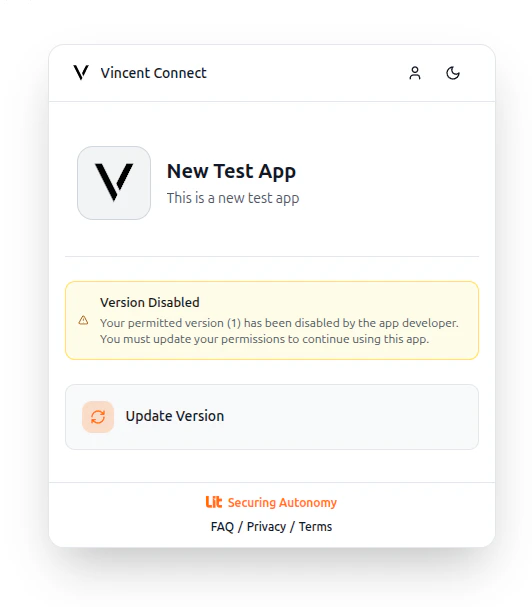 **User experience:**
* They receive a prompt to upgrade to the latest enabled version
* They must upgrade to continue using your App
* They cannot access the App until they complete the upgrade
Disabling a version immediately blocks access for all users on that version until they upgrade.
When both the user's current version and the app's active version are disabled:
**User experience:**
* They receive a prompt to upgrade to the latest enabled version
* They must upgrade to continue using your App
* They cannot access the App until they complete the upgrade
Disabling a version immediately blocks access for all users on that version until they upgrade.
When both the user's current version and the app's active version are disabled:
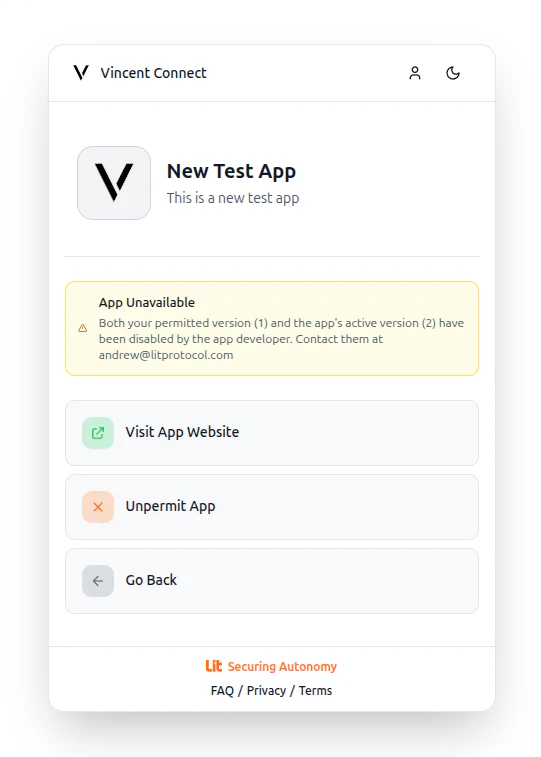 **User experience:**
* They cannot access the App at all
* No enabled version is available for them to upgrade to
* You must re-enable at least one version for users to regain access
Ensure at least one version remains enabled to maintain user access to your App.
## FAQ
If you disable the active App Version but have other enabled versions available:
* Users on other enabled versions continue working normally
* Users on the disabled version must upgrade to the latest enabled version
* New users will be directed to the latest enabled version
Yes! The **Enable App Version** button allows you to re-enable any disabled version, immediately restoring access for users on that version.
Users are notified the next time they sign into your App using Vincent after you've made version changes. There are no push notifications or emails sent automatically.
This documentation is built and hosted on [Mintlify](https://mintlify.com), a developer documentation platform.
**User experience:**
* They cannot access the App at all
* No enabled version is available for them to upgrade to
* You must re-enable at least one version for users to regain access
Ensure at least one version remains enabled to maintain user access to your App.
## FAQ
If you disable the active App Version but have other enabled versions available:
* Users on other enabled versions continue working normally
* Users on the disabled version must upgrade to the latest enabled version
* New users will be directed to the latest enabled version
Yes! The **Enable App Version** button allows you to re-enable any disabled version, immediately restoring access for users on that version.
Users are notified the next time they sign into your App using Vincent after you've made version changes. There are no push notifications or emails sent automatically.
This documentation is built and hosted on [Mintlify](https://mintlify.com), a developer documentation platform.