> ## Documentation Index
> Fetch the complete documentation index at: https://litprotocol-vincent.mintlify.site/llms.txt
> Use this file to discover all available pages before exploring further.
# Updating Apps
Vincent Apps use versioning to ensure user trust and security. When users delegate to your App, they delegate to a specific version with an immutable set of Abilities and Policies that cannot be changed without their explicit consent.
## Version Changes
Adding, updating, or removing Vincent Abilities from your App
Modifying Vincent Policies for your App's Abilities
App Delegatees authorized for all versions
Redirect URIs for the Vincent Connect page
Deployment status (DEV, TEST, PROD)
App details including name, description, and logo
## Version Lifecycle
Initialize the version off-chain with your chosen Abilities and Policies. Changes are still possible at this stage.
Register the version on-chain in the Vincent App Registry. Once published, the version becomes immutable and available for user delegation.
Published versions cannot be modified. To make changes, create and publish a new version.
## How to Create a New Version
Go to the [Vincent Developer Dashboard](https://dashboard.heyvincent.ai/developer/dashboard)
Select the App Details menu item from the sidebar menu
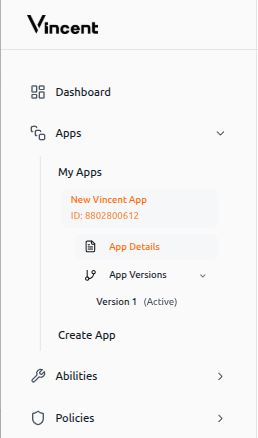 Click `Create App Version`
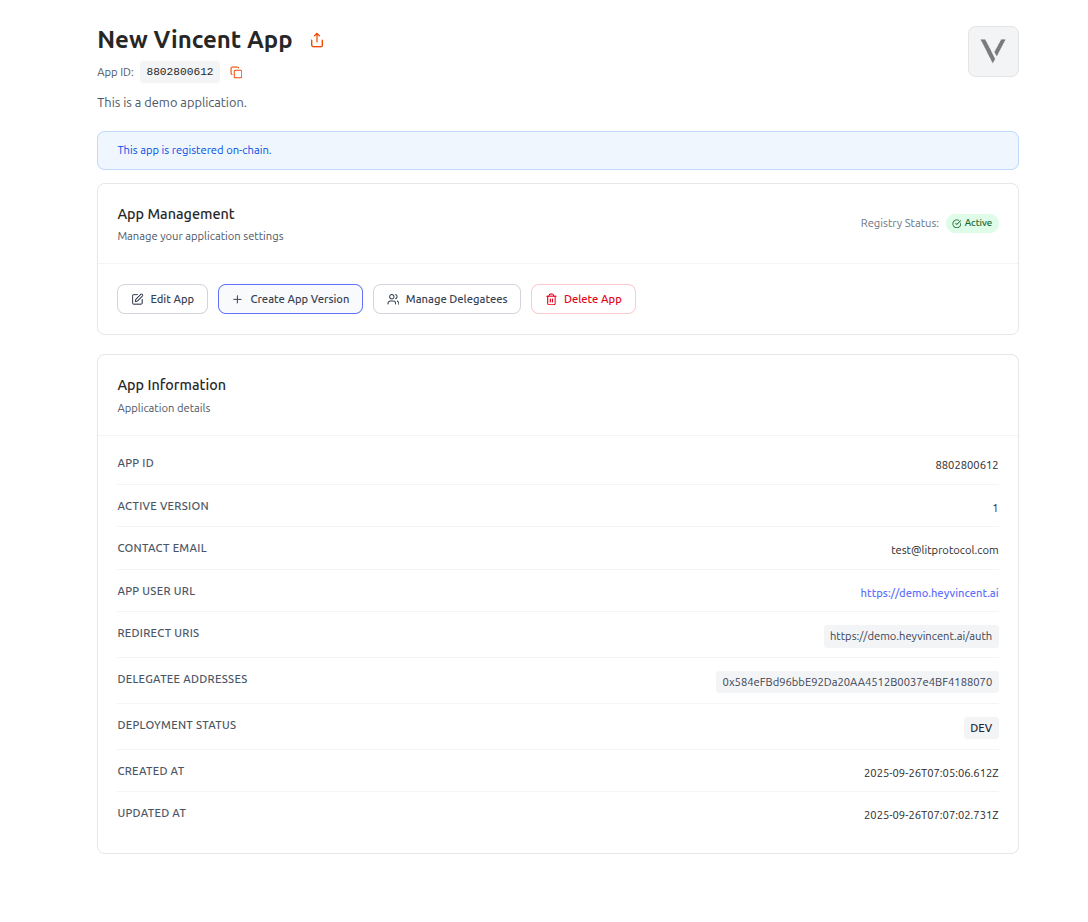 Provide a description of changes made to the application since your previous version
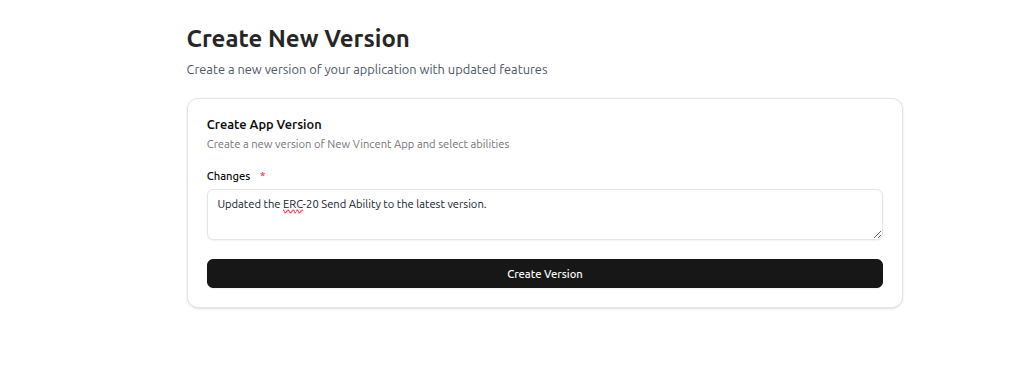 Similar to creating the first version, you'll be redirected to add Abilities to your app version and configure policies
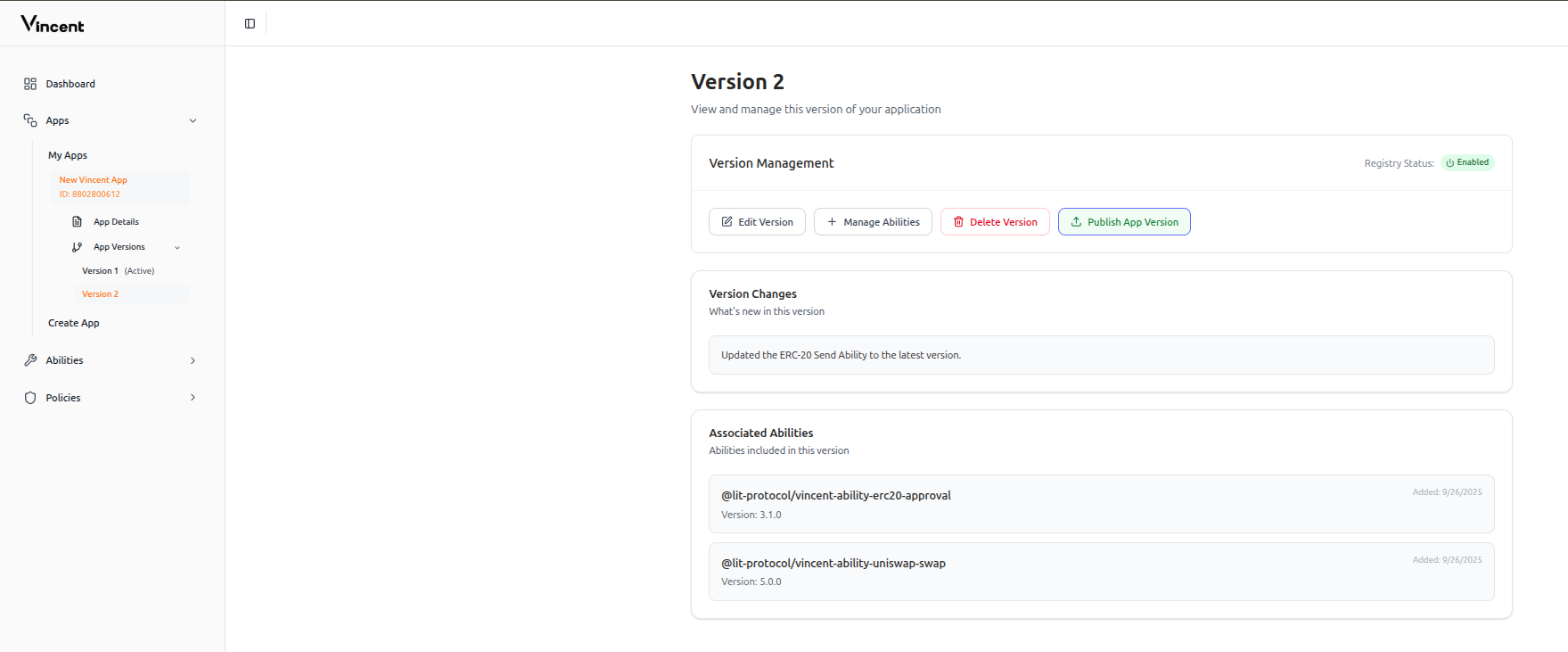
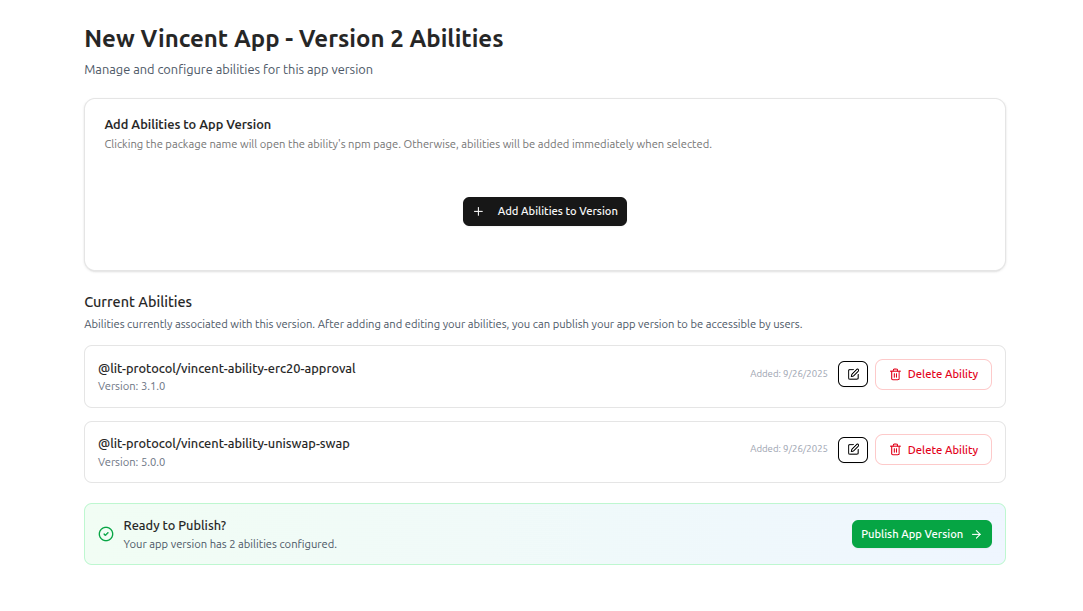 On the left sidebar, click **Apps**, then **App Versions**, and select your new version to navigate to the App Version management page. Click the **Publish App Version** button to register the App Version as published in the Vincent Registry smart contract
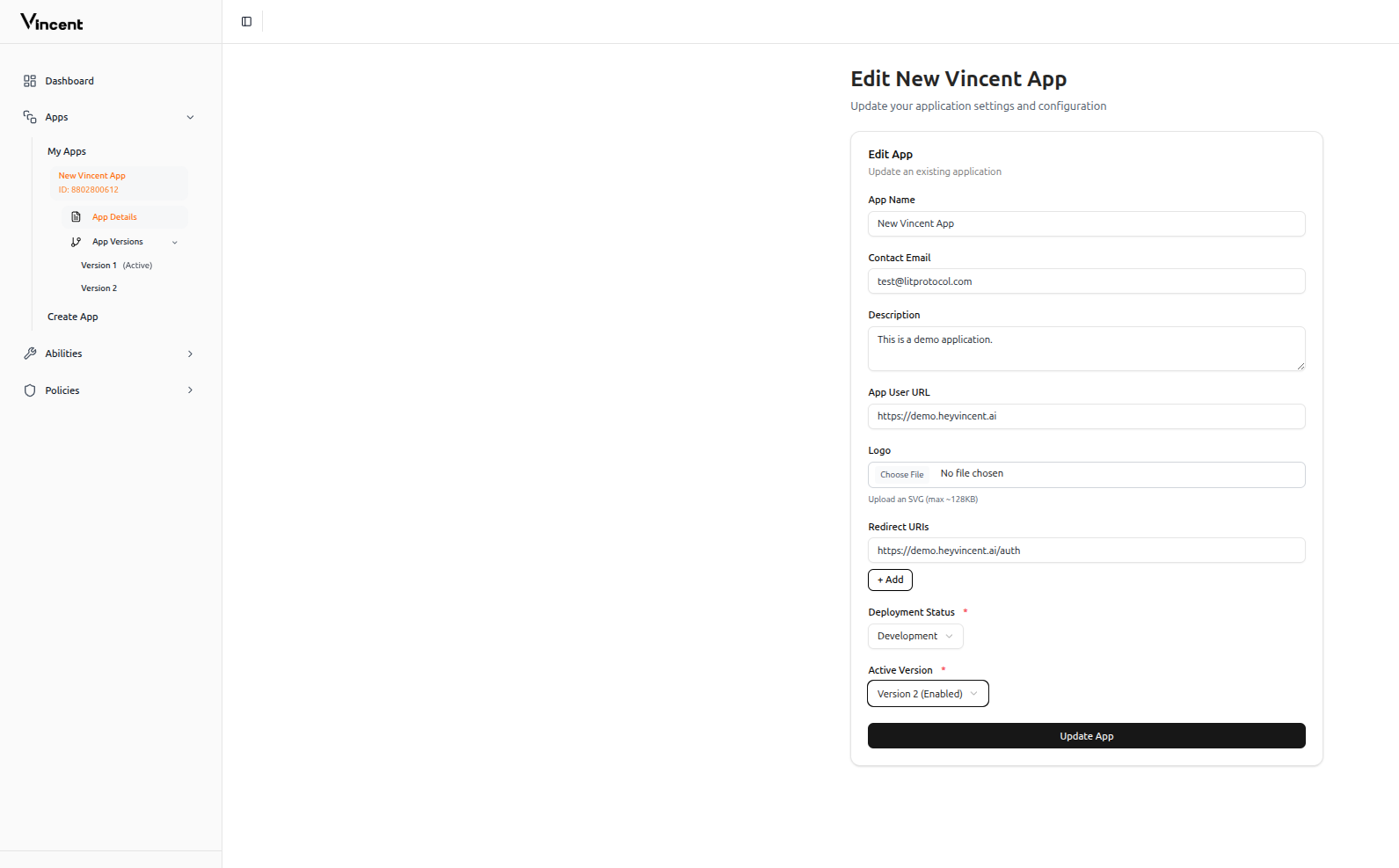
 For users to see the version update, update the App's active version through the `Edit App` page
 And done! Now new users will permit your new app version, and existing users will be notified when they go to authenticate.
## FAQ
Disabling an App Version immediately prevents users on that version from using your App. They'll be prompted to upgrade to the latest enabled version. Your delegatees won't be able to execute Abilities for users who only authorized the disabled version. Disabled versions can be re-enabled at any time.
Users are only notified when you set a new version as the active App Version. They won't see notifications for versions you create or publish but don't activate. Upgrade prompts appear when a new active version is available (optional if current version is enabled) or when their version is disabled (mandatory).
Versioning is fundamental to Vincent's trust model. Every version is immutable once published, transparent in what it authorizes, and requires explicit opt-in from users for upgrades. This gives you control over your App's evolution without compromising user permissions.
## Next Steps
Learn how to disable old versions and manage user upgrades
This documentation is built and hosted on [Mintlify](https://mintlify.com), a developer documentation platform.
And done! Now new users will permit your new app version, and existing users will be notified when they go to authenticate.
## FAQ
Disabling an App Version immediately prevents users on that version from using your App. They'll be prompted to upgrade to the latest enabled version. Your delegatees won't be able to execute Abilities for users who only authorized the disabled version. Disabled versions can be re-enabled at any time.
Users are only notified when you set a new version as the active App Version. They won't see notifications for versions you create or publish but don't activate. Upgrade prompts appear when a new active version is available (optional if current version is enabled) or when their version is disabled (mandatory).
Versioning is fundamental to Vincent's trust model. Every version is immutable once published, transparent in what it authorizes, and requires explicit opt-in from users for upgrades. This gives you control over your App's evolution without compromising user permissions.
## Next Steps
Learn how to disable old versions and manage user upgrades
This documentation is built and hosted on [Mintlify](https://mintlify.com), a developer documentation platform.